The five-digit print code must belong to the same person that logged into the computer that sent the job to the copier/printer.
- Select the **Print Queue** (**Druckfreigabe**) from the home screen [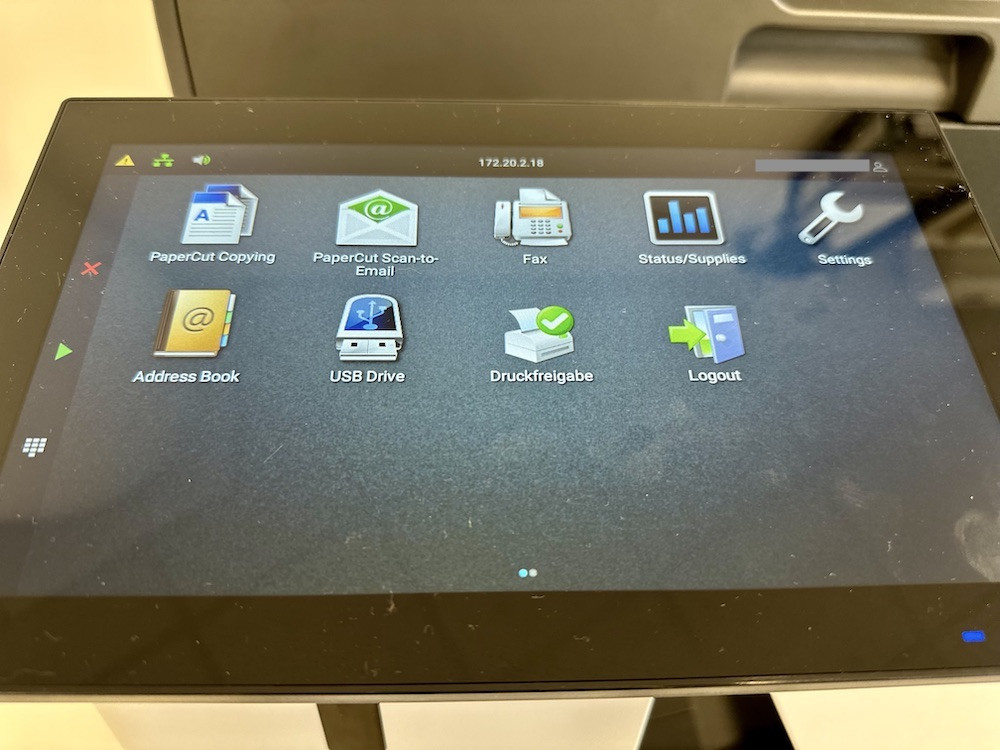](https://libguides.whitecliffe.de/uploads/images/gallery/2024-10/img-6224.jpg) - Select the print job you'd like to print - Confirm by press **Print** (**Drucken**) #### via your personal computer [Whitecliffe's IT department provides instructions for printing from either Mac or Windows computers.](https://kb.berlin-international.net/en-gb/6-printer) --- ### Troubleshooting If you are having issues, [please see this page for troubleshooting](https://libguides.whitecliffe.de/books/troubleshooting/page/printing). # How do I add money to my Print Account? Please see the Front Desk. # What if I don't know my five-digit Printer Code? Please see the Front Desk. # How do I type the @ symbol? Alt Gr + L # How to submit your thesis to the Whitecliffe Insitutional Repository #### **IMPORTANT: Submit Only After Successful Completion** Submit your thesis to the institutional repository only after you have: - Received official notification of a passing grade on your thesis defense/examination, **OR** - Been formally notified by the Examinations Office that you will graduate Do not submit your thesis prior to receiving confirmation of successful completion. Theses submitted before final approval may require resubmission and could delay the archiving process. #### **Step 1 - Prepare Your Thesis File for Long-Term Archiving**For optimal long-term preservation and accessibility, we **strongly recommend** submitting your thesis in **PDF/A** format rather than standard PDF. PDF/A is the ISO-standard archival format used by academic institutions worldwide to ensure documents remain readable and consistent for decades.
**Creating PDF/A files:** - **Adobe InDesign:** Choose File → Export → select "Adobe PDF (Print)" as format → in the Export Adobe PDF dialog, select "PDF/X-4:2008" or "PDF/A-1b:2005" from the Adobe PDF Preset dropdown (top of dialog) → click Export. Note: PDF/X-4 is also suitable for archival and widely used in professional publishing. - **Adobe Illustrator:** Choose File → Save As → select "Adobe PDF" as format → in the Save Adobe PDF dialog, choose "PDF/A-1b:2005" from the Standard dropdown menu → click Save PDF. - **Microsoft Word (Windows/Mac):** When saving, choose File → Save As → Browse → select "PDF" as file type → click "Options" → check "ISO 19005-1 compliant (PDF/A)". - **LibreOffice/OpenOffice:** Use File → Export as PDF → select "Archive PDF/A-1a (ISO 19005-1)" option in the export dialog. - **LaTeX users:** Include the `pdfx` package with `[a-2b]` option in your preamble (see [this guide](https://webpages.tuni.fi/latex/pdfa-guide.pdf) for detailed LaTeX-specific instructions). - **Online converters (privacy note):** For theses, avoid “free” ad-supported web converters; instead prefer installed desktop tools (e.g., Acrobat Pro or callas pdfaPilot) so the document never leaves your device. --- #### **Step 2 - Visit [https://repository.berlin-international.de](https://repository.berlin-international.de)** [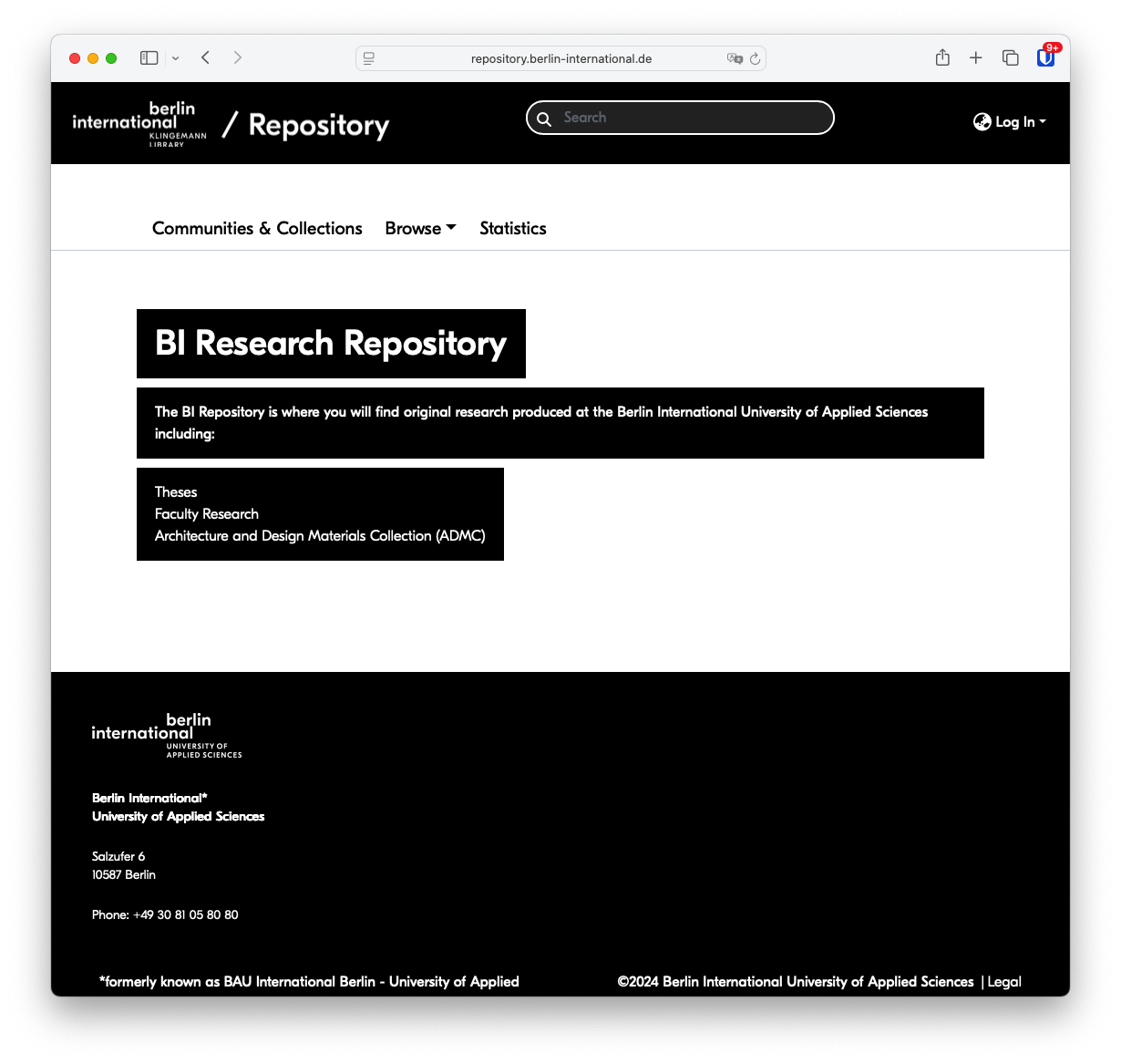](https://libguides.whitecliffe.de/uploads/images/gallery/2025-09/thesis-submission-tutorial-1.png) #### **Step 3 - Log in using your BI email and email password (Google)**These credentials should be exactly the same as those you use to log into your Whitecliffe email account. **Do not try to register a new account.**
[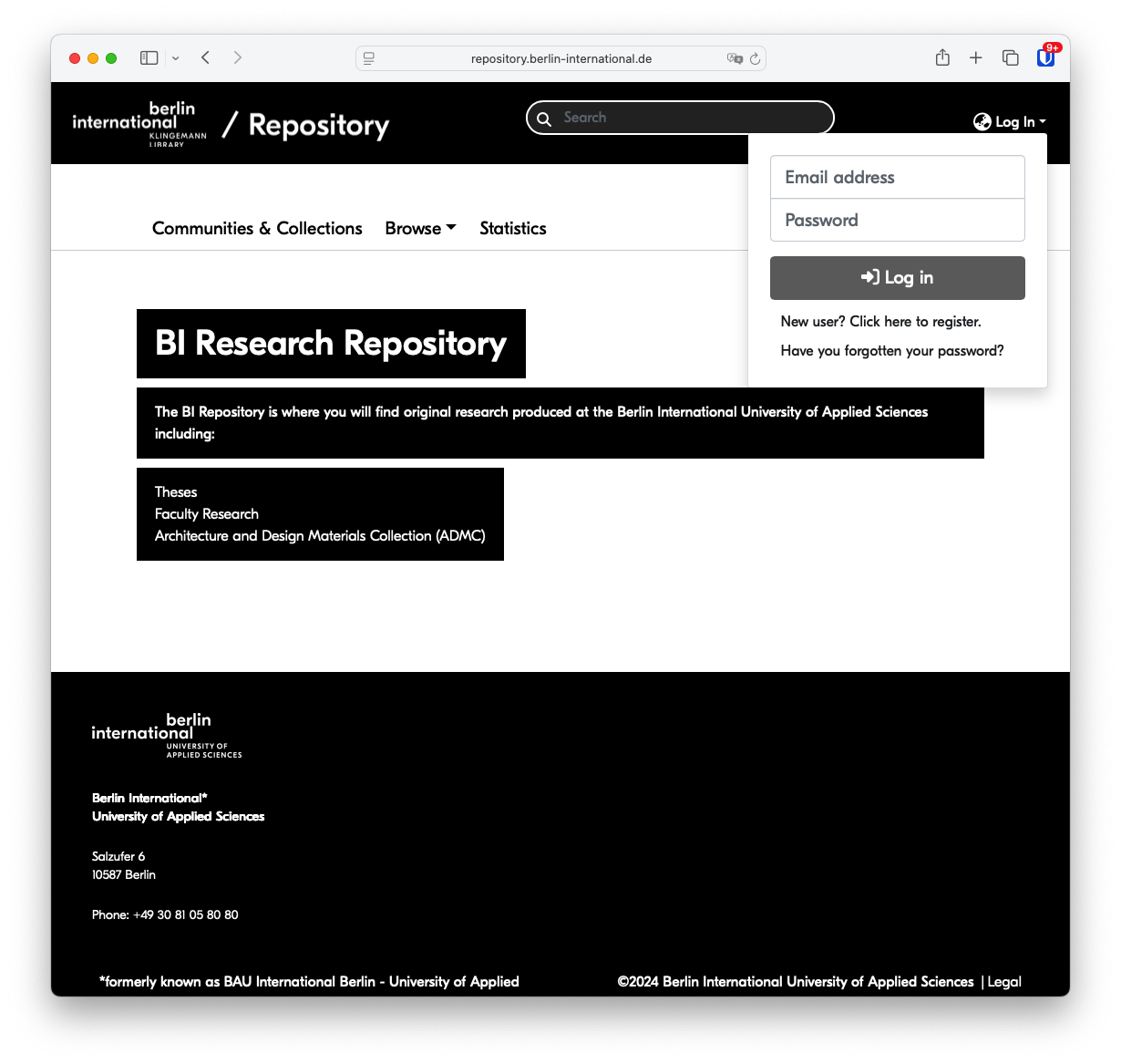](https://libguides.whitecliffe.de/uploads/images/gallery/2025-09/thesis-submission-tutorial-2.png) #### **Step 4 - Press the plus (+) button** [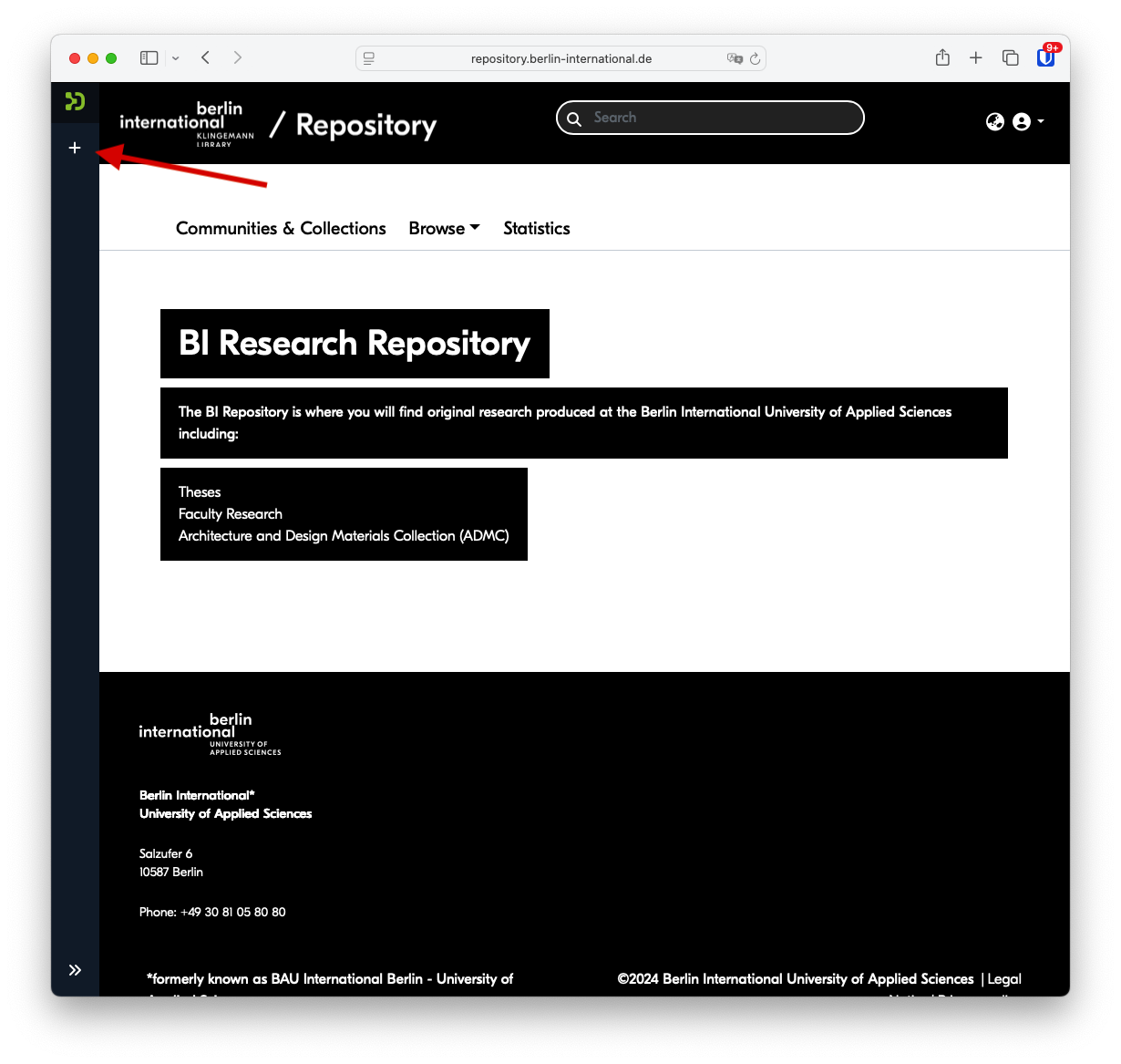](https://libguides.whitecliffe.de/uploads/images/gallery/2025-09/DeVthesis-submission-tutorial-3.png) #### **Step 5 - Press the New → Item** [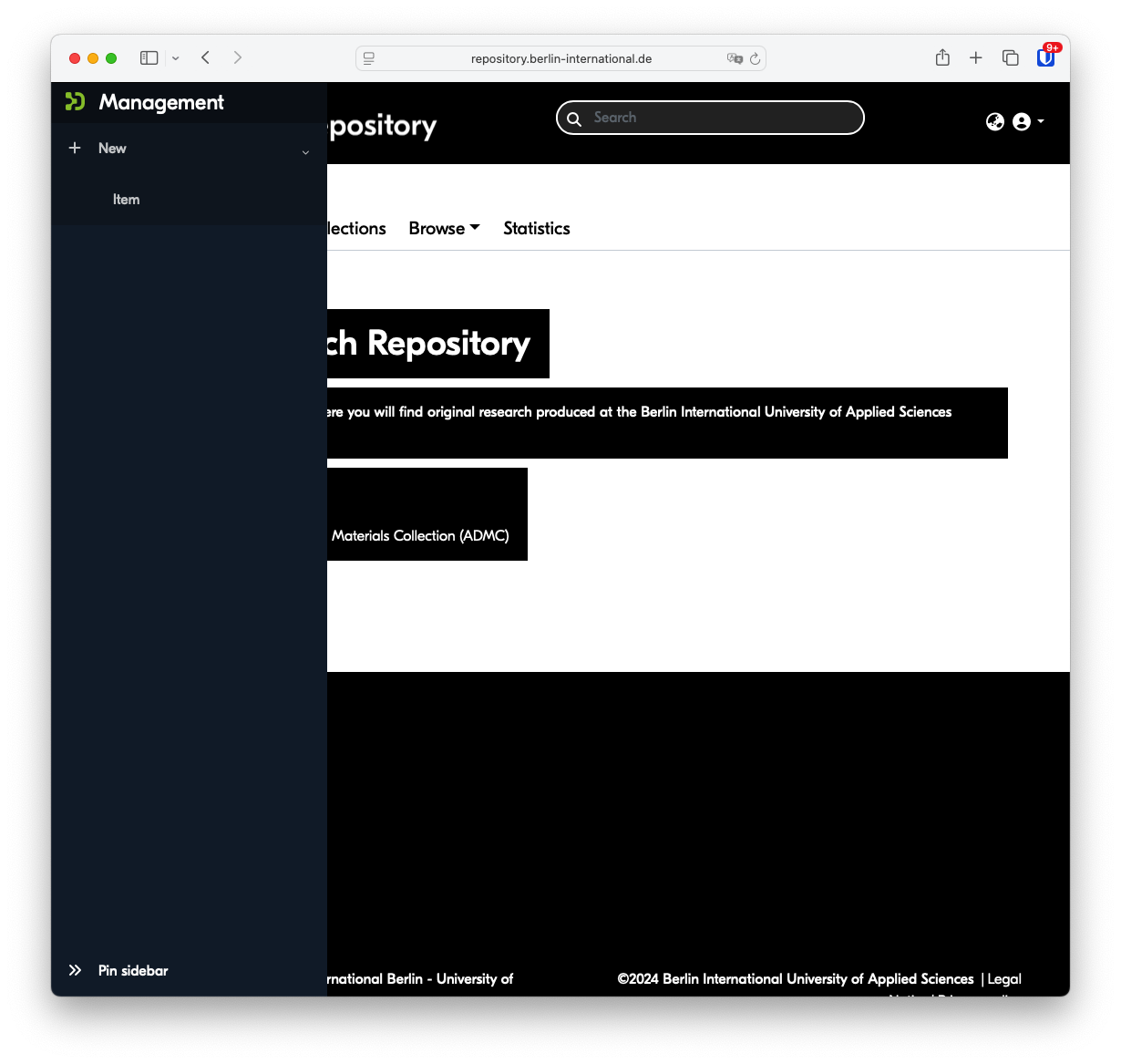](https://libguides.whitecliffe.de/uploads/images/gallery/2025-09/thesis-submission-tutorial-4.png) #### **Step 6 - Select either Graduate Theses (e.g. MA or MBA) or Undergraduate Theses (all BAs)** [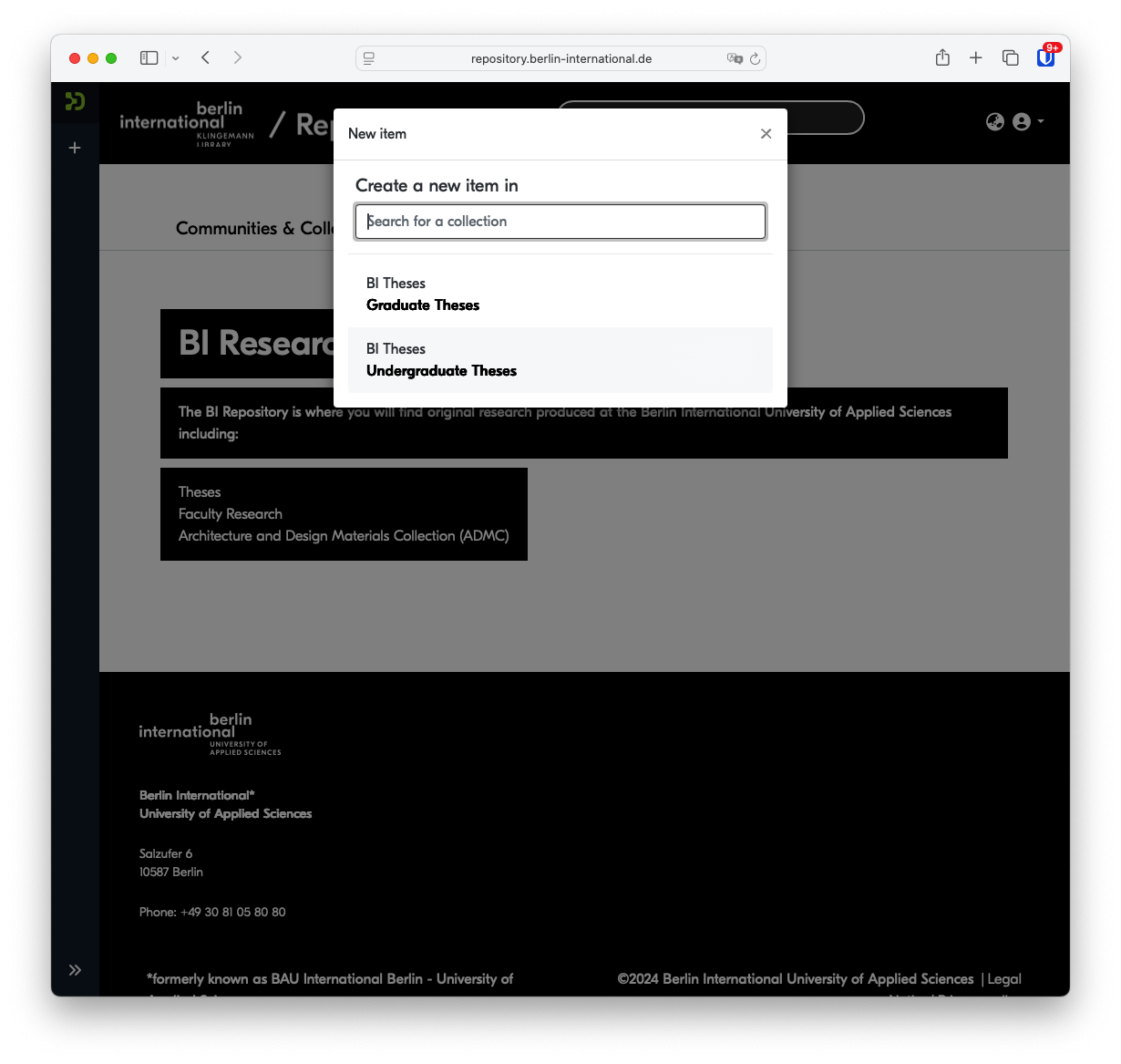](https://libguides.whitecliffe.de/uploads/images/gallery/2025-09/thesis-submission-tutorial-5.png) #### **Step 7 - Either drag your PDF/A file (or standard PDF) onto the screen or press Browse to locate the file on your device** [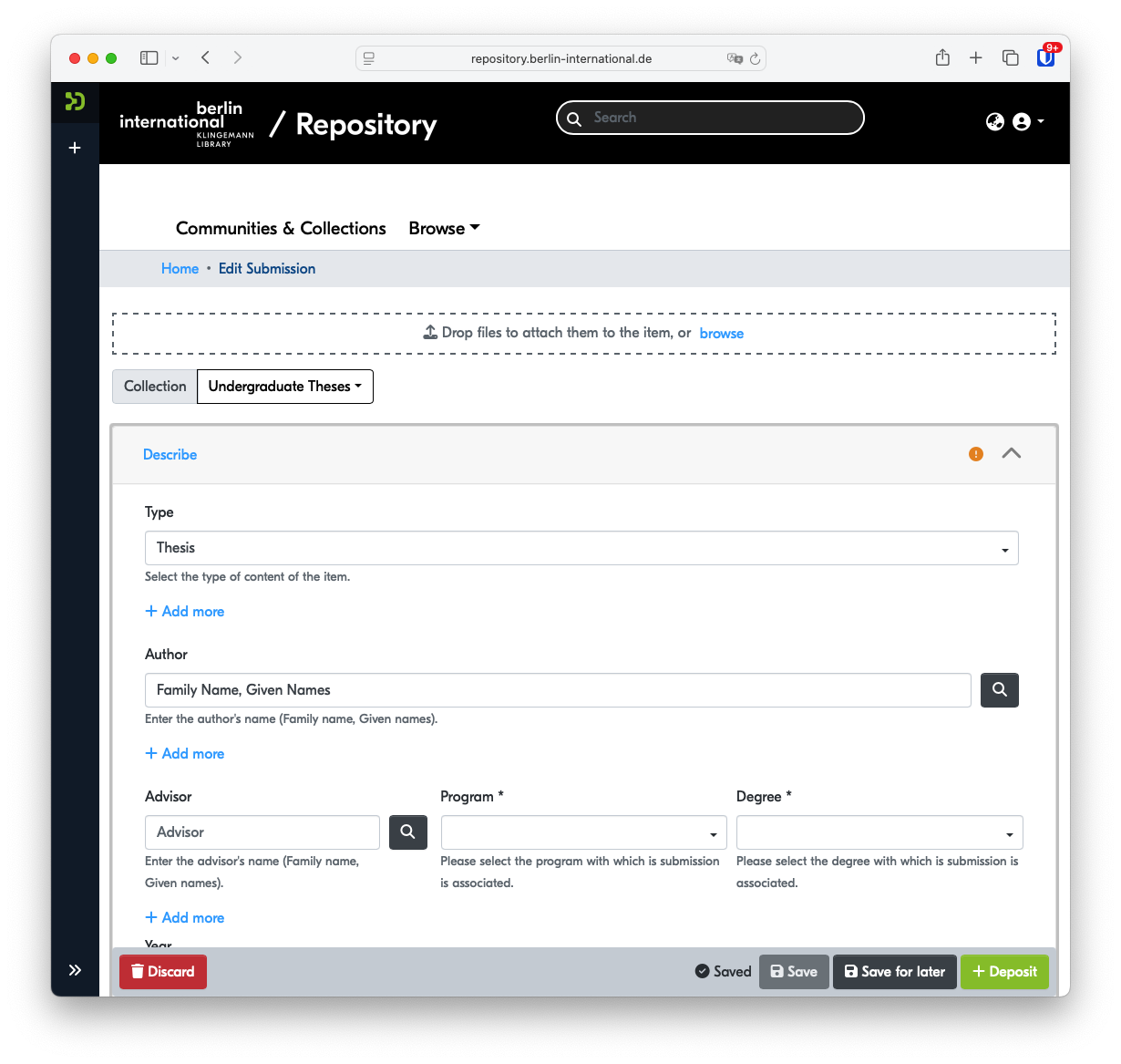](https://libguides.whitecliffe.de/uploads/images/gallery/2025-09/thesis-submission-tutorial-7.png) #### **Step 8 - Fill in all applicable fields**| Type\* | Do not modify |
| Author\* | Enter your name in the format: **Family Name, Given Name(s)** |
| Advisor | Press the magnifying glass to search for your advisor. If not found, type the advisor's name in the format: **Family Name, Given Name(s)** |
| Program\* | Select your **program** |
| Degree\* | Select your **degree** |
| Year\* | Enter the **year** your thesis was submitted |
| Title\* | Enter the complete english **title** for your thesis |
| Other titles | Any additional titles, for instance translated titles included on your thesis title page, can be included here |
| Subject Keywords | Enter a maximum of **five descriptive keywords** |
| Abstract\* | Include the text of your **abstract** here. This should be the same abstract as included in your thesis. |
If you experience that the previous fields have disappeared after inputting keywords or an abstract, try reloading the page and the missing info should reappear.
#### **Step 9 - Click the box to agree to the license terms**Note that these are the same terms as submitted with your physical thesis.
[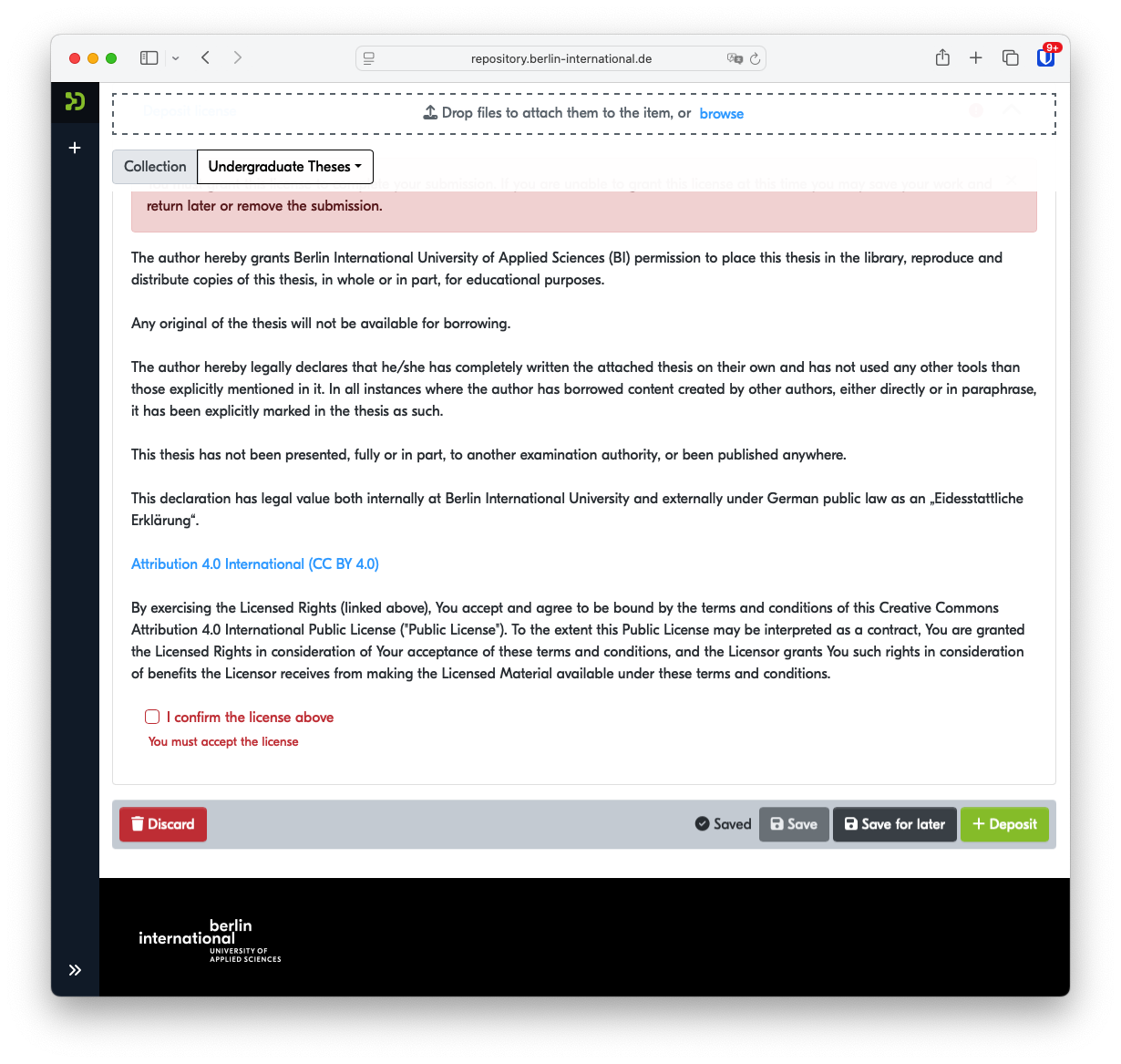](https://libguides.whitecliffe.de/uploads/images/gallery/2025-09/thesis-submission-tutorial-9.png) #### **Step 10 - Click + Deposit** After submission, your thesis will be reviewed and made available after confirmation from the Examinations Office. # Welcome to the Library # How to Access Research Databases Using OpenAthens ## Overview As of July 2026, all remote databases have moved from proxy-based authentication (EZProxy) to **OpenAthens**. You will now see an OpenAthens or institutional sign-in screen instead. Off campus, every remote database link on the [Research Database Index](https://library.whitecliffe.de/cgi-bin/koha/opac-page.pl?page_id=24) now goes through this process; on campus, IP recognition still applies and no sign-in is required.Depending on the database, you will see one of two sign-in patterns, both explained below: most links take you straight to a sign-in page; a smaller number of platforms, including Scopus, ScienceDirect, SciVal, and Web of Science, first ask you to search for or select your institution.
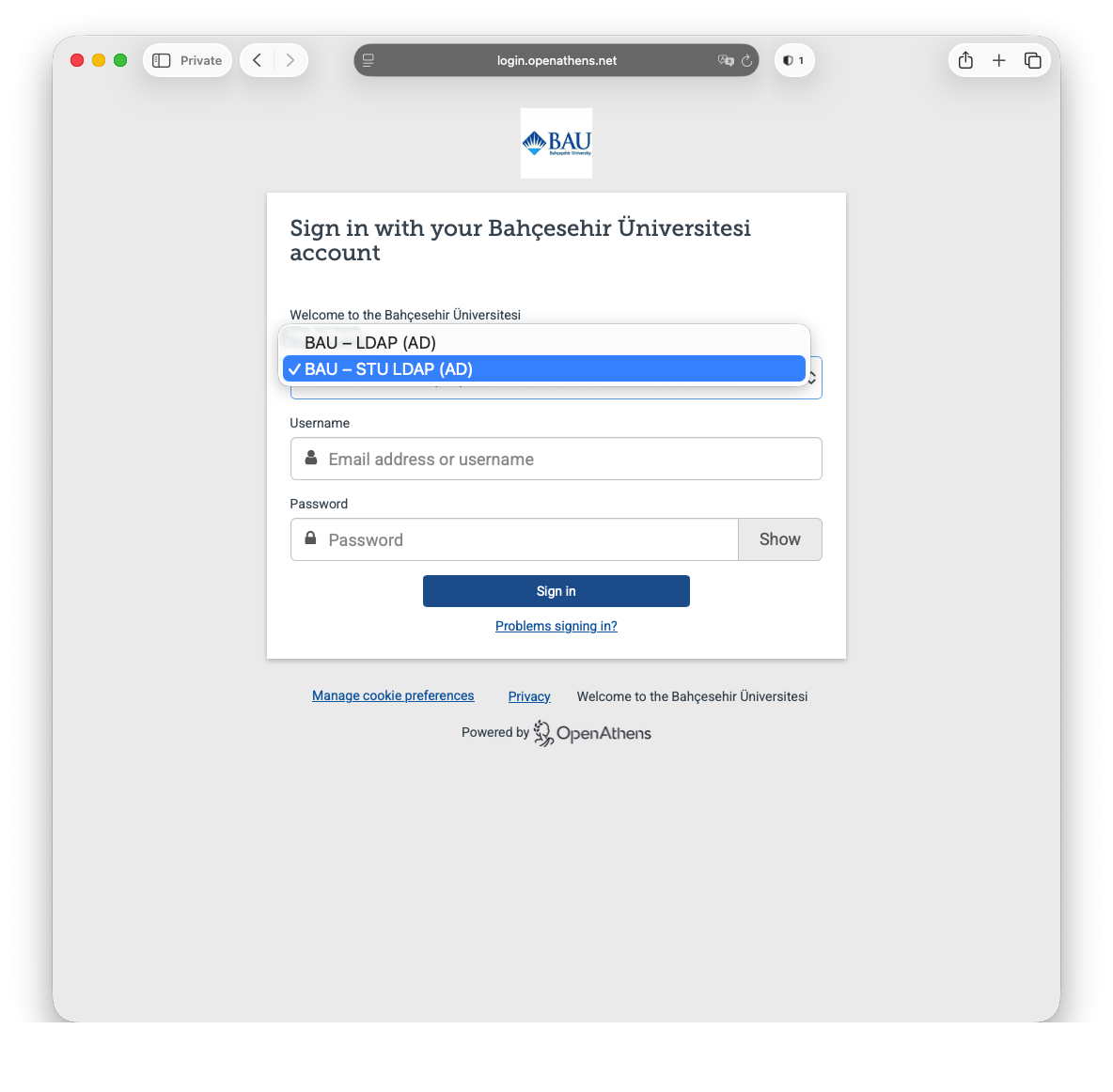
## Databases that sign you in directly For most remote databases, clicking the link takes you straight to a sign-in page asking for your UMIS credentials. Faculty and staff should use their network credentials instead. No extra steps are needed: enter your credentials and you will be returned to the database. ## Databases that ask you to select your institution A few platforms use their own federated login screen rather than signing you in directly. These show an **Institutional Sign In** or similar option; you then need to search for or select **Bahçeşehir Üniversitesi (Bahçeşehir University)** and, where prompted, choose **OpenAthens Federation** and **BAU - STU LDAP (AD)** before entering your UMIS credentials. Two worked examples follow. ### Example: Scopus (or ScienceDirect, SciVal) **Step 1**: The link to Scopus from the [Research Database Index](https://library.whitecliffe.de/cgi-bin/koha/opac-page.pl?page_id=24) should take you to the page below. [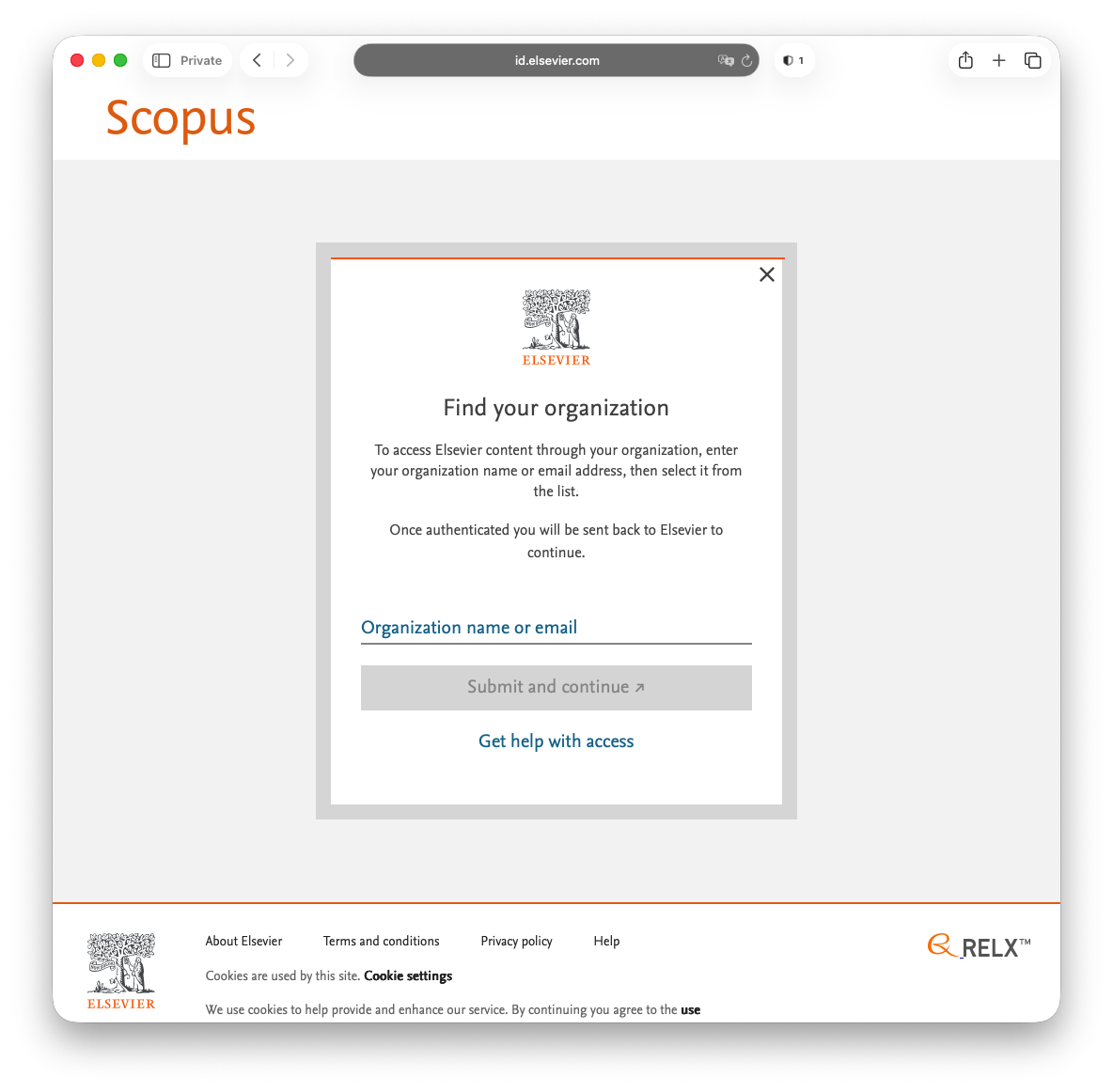](https://libguides.whitecliffe.de/uploads/images/gallery/2026-03/screenshot-2026-03-09-at-10-36-00.png) **Step 2:** From here, select **Bahçesehir Üniversitesi (Bahçeşehir University)**. [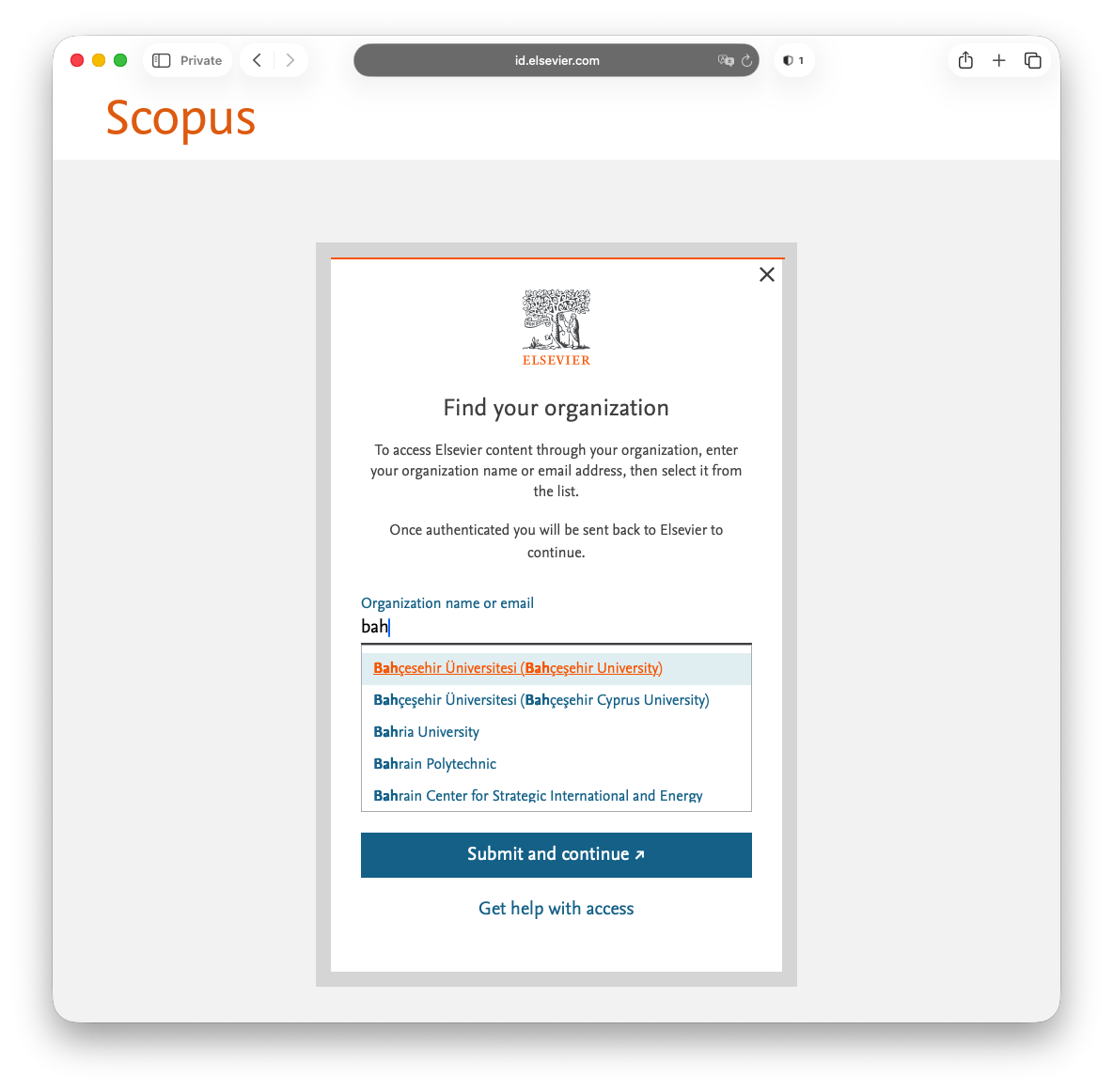](https://libguides.whitecliffe.de/uploads/images/gallery/2026-03/screenshot-2026-03-09-at-10-36-08.png) **Step 3:** Next select **BAU - STU LDAP (AD)** from the first drop-down menu followed by your UMIS credentials.Faculty / staff should use their network credentials instead of UMIS credentials here.
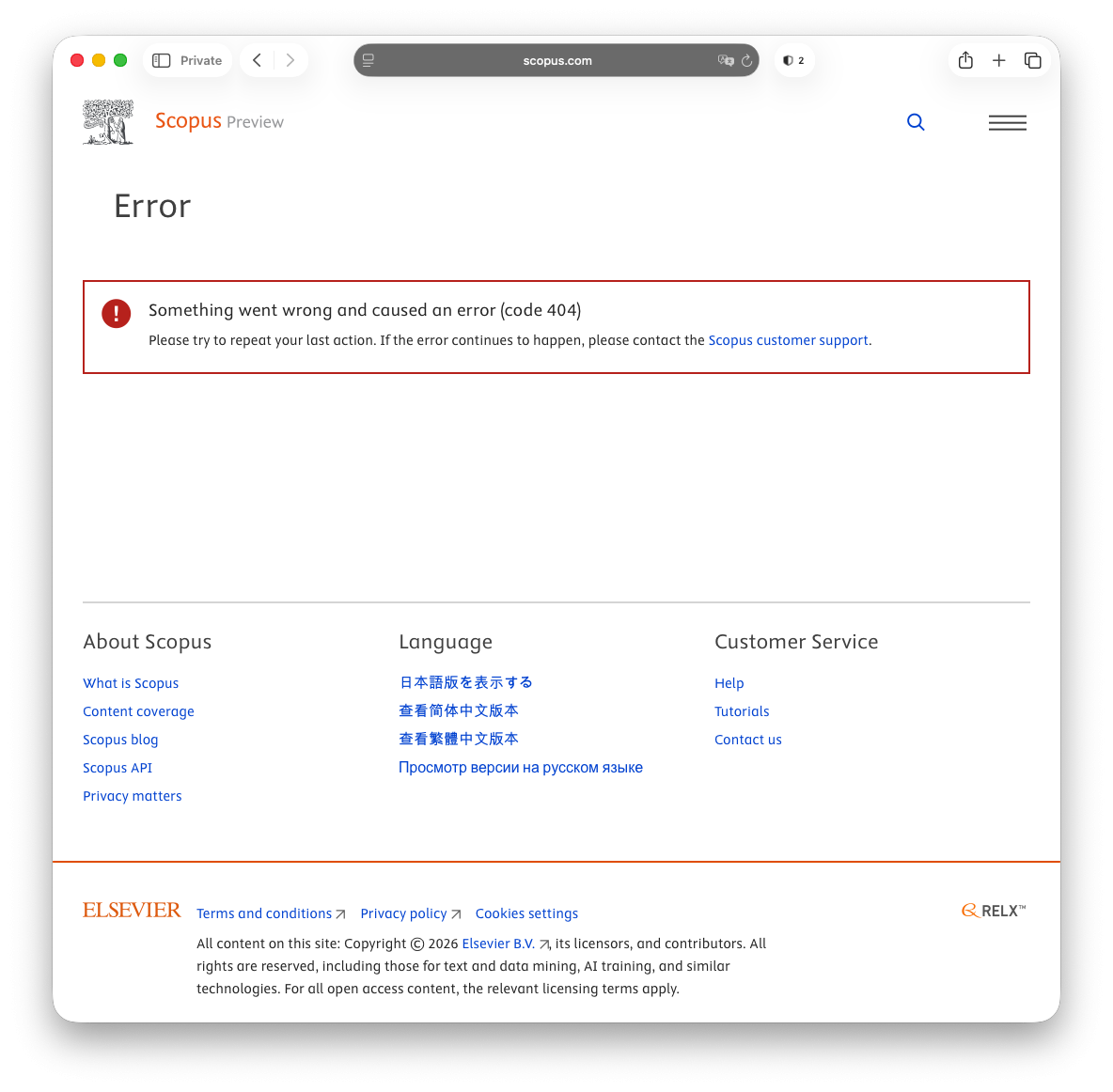
[](https://libguides.whitecliffe.de/uploads/images/gallery/2026-03/screenshot-2026-03-09-at-10-36-19.png) **Step 4** [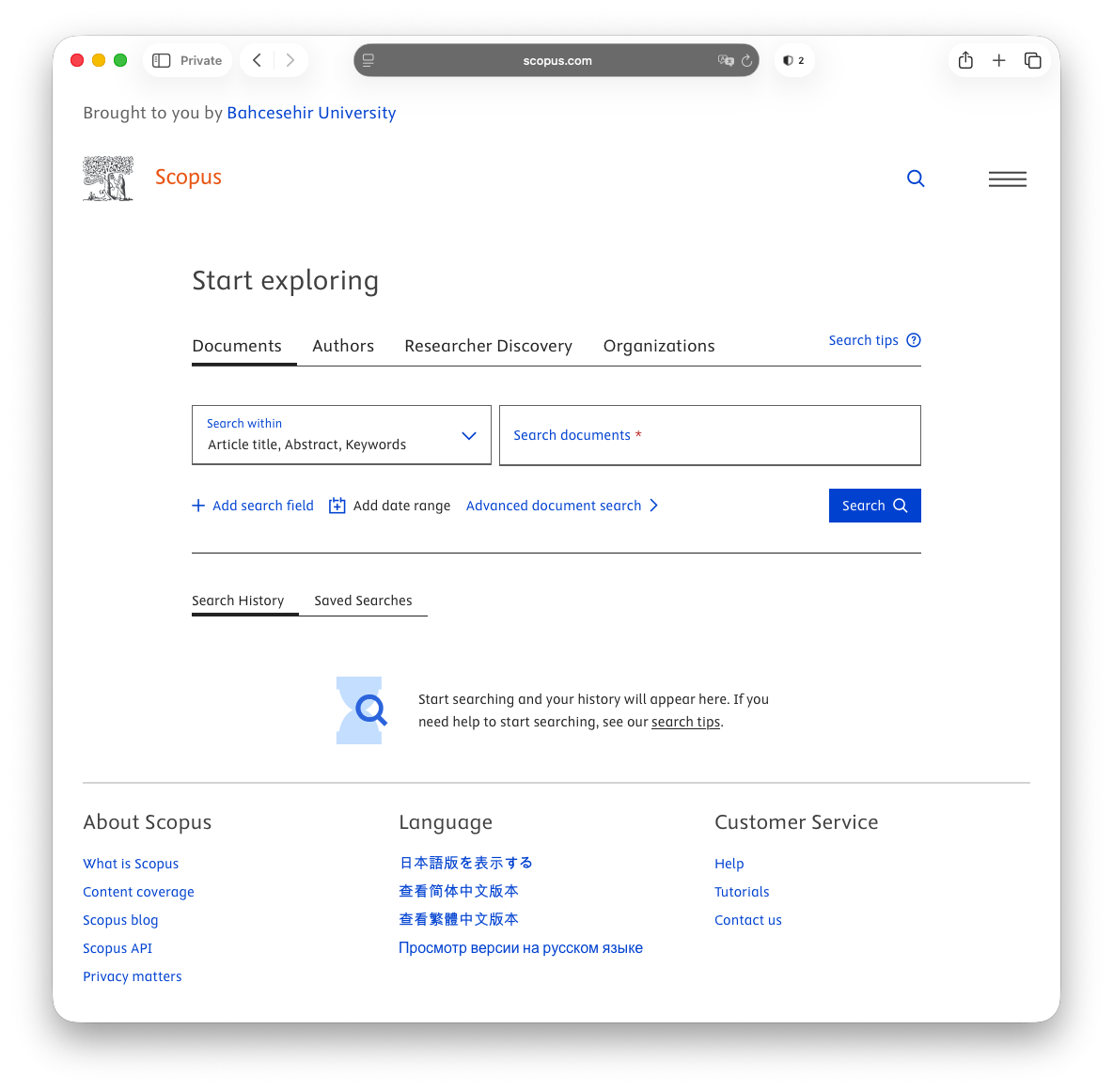](https://libguides.whitecliffe.de/uploads/images/gallery/2026-03/screenshot-2026-03-09-at-10-36-55.png)If you see the error screen below, simply click on the Scopus Preview logo in the top left corner of the screen and you will be redirected to the screen above.
[](https://libguides.whitecliffe.de/uploads/images/gallery/2026-03/screenshot-2026-03-09-at-10-36-46.png) ### Example: Web of Science **Step 1:** The link to Web of Science from the [Research Database Index](https://library.whitecliffe.de/cgi-bin/koha/opac-page.pl?page_id=24) should take you to the page below. [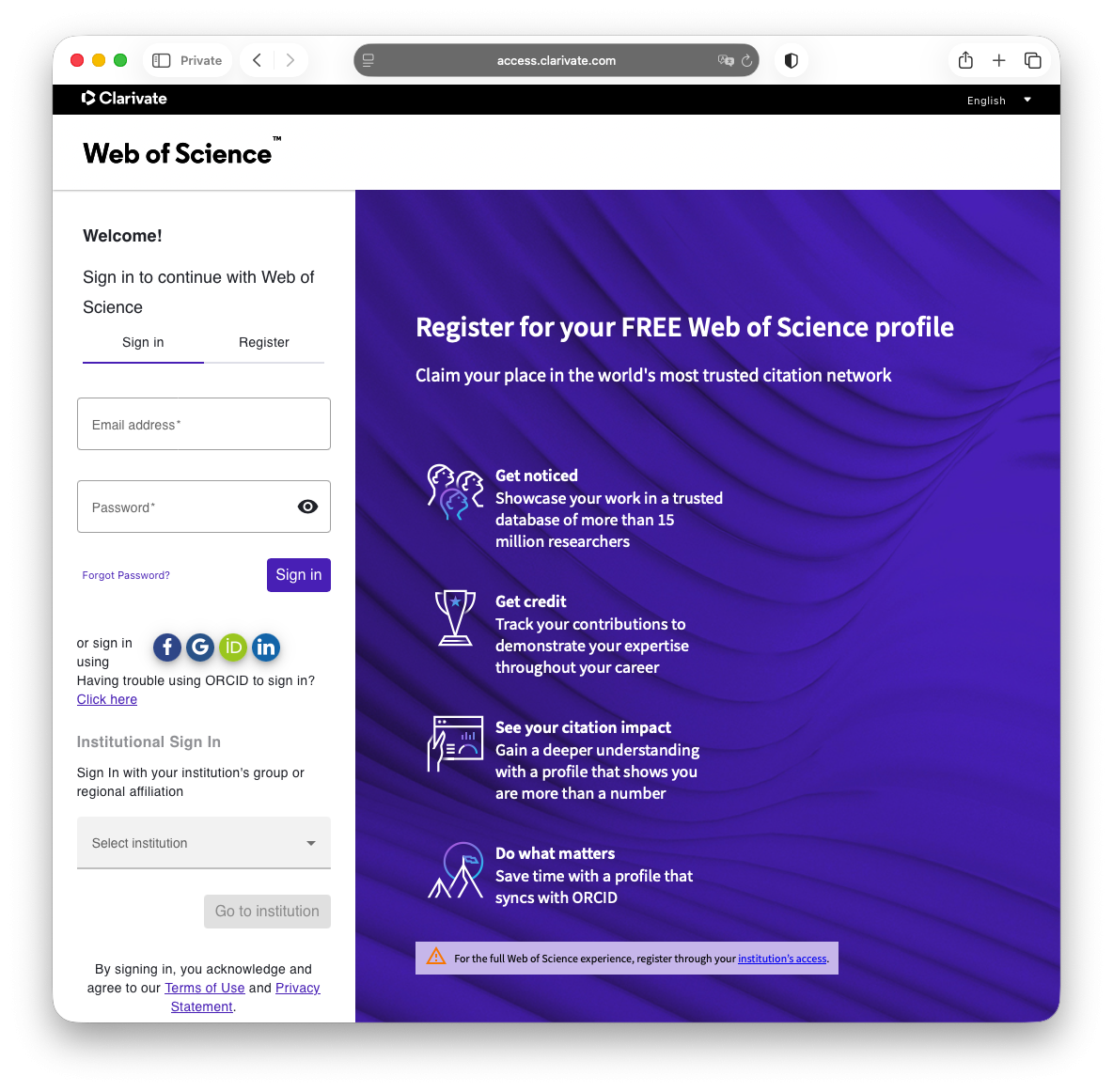](https://libguides.whitecliffe.de/uploads/images/gallery/2026-03/screenshot-2026-03-09-at-11-00-47.png) **Step 2:** Under *Institutional Sign In*, select **OpenAthens Federation**. [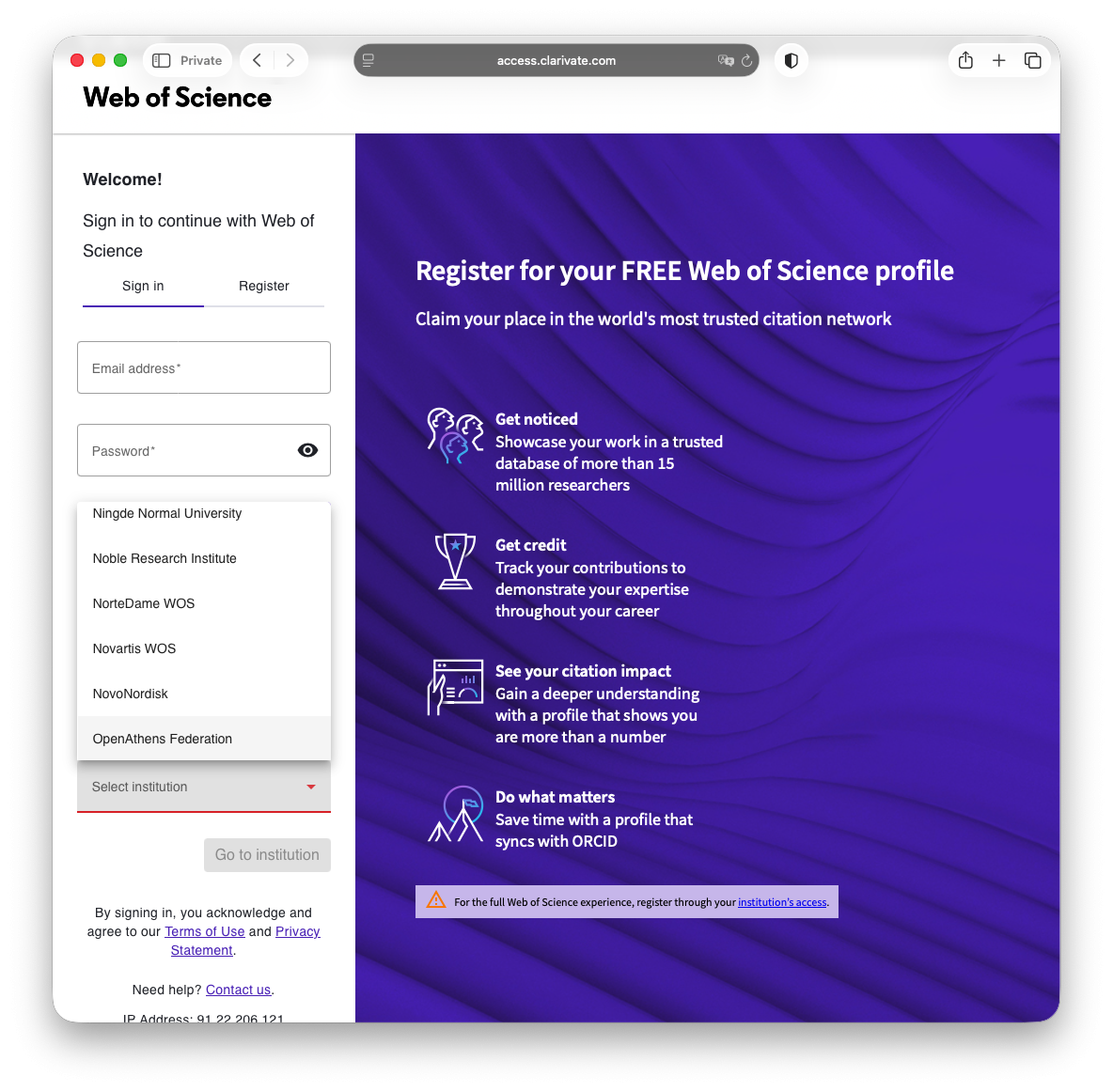](https://libguides.whitecliffe.de/uploads/images/gallery/2026-03/screenshot-2026-03-09-at-11-01-12.png) **Step 3** [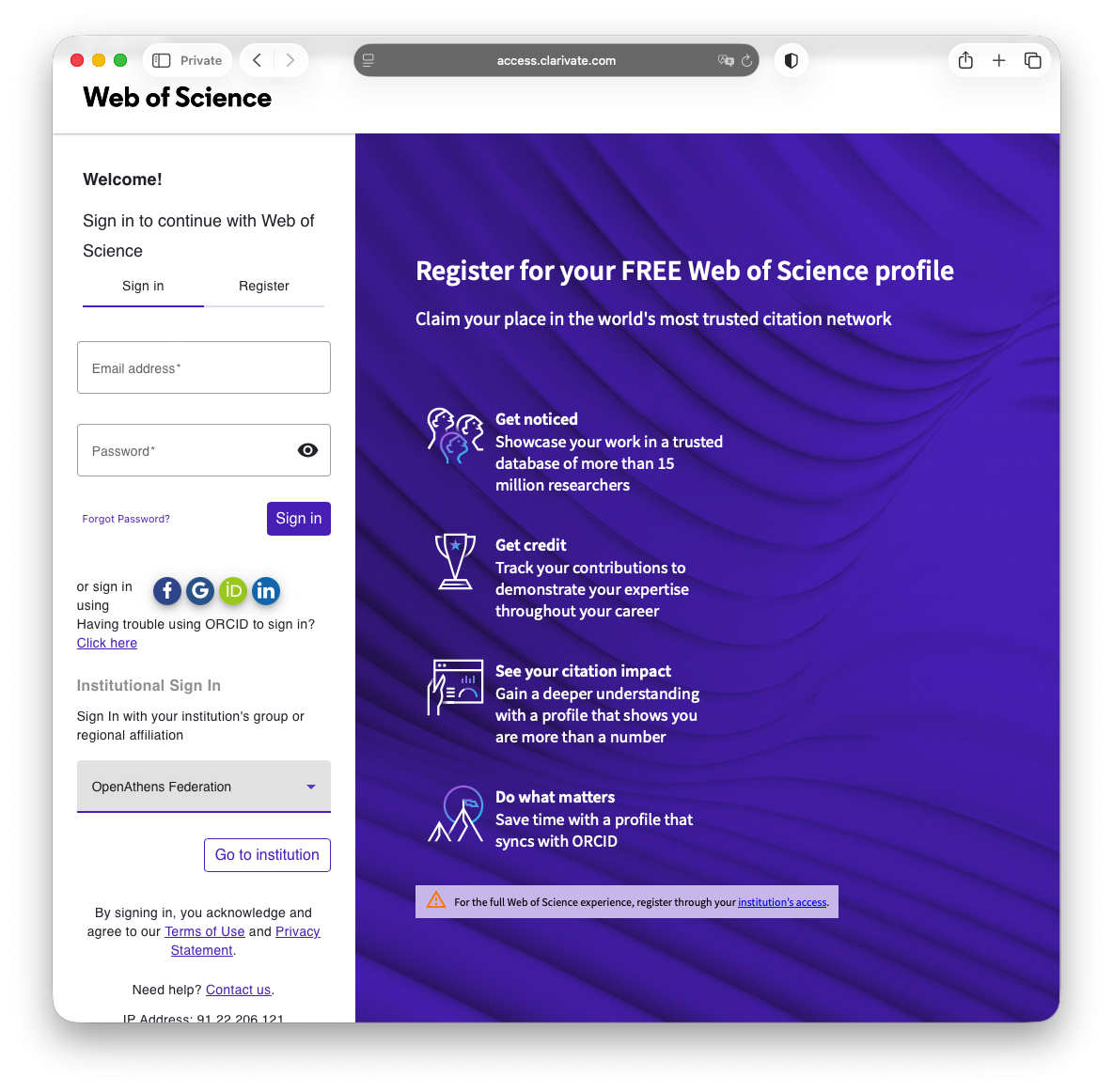](https://libguides.whitecliffe.de/uploads/images/gallery/2026-03/screenshot-2026-03-09-at-11-01-19.png) **Step 4:** From here, select **Bahçesehir Üniversitesi**. [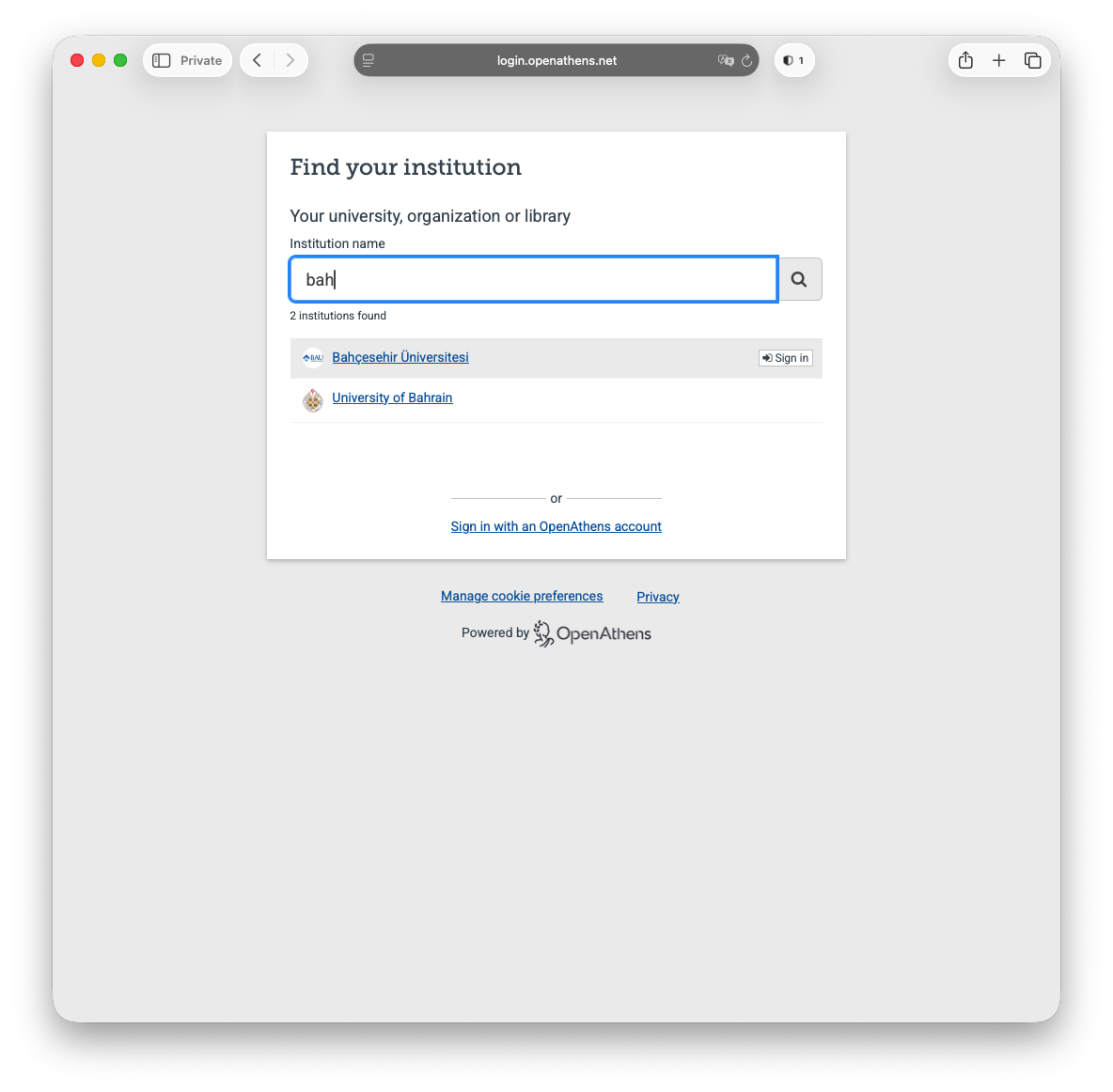](https://libguides.whitecliffe.de/uploads/images/gallery/2026-03/screenshot-2026-03-09-at-11-01-30.png) **Step 5**: Next select **BAU - STU LDAP (AD)** from the first drop-down menu followed by your UMIS credentials.Faculty / staff should use their network credentials instead of UMIS credentials here.
[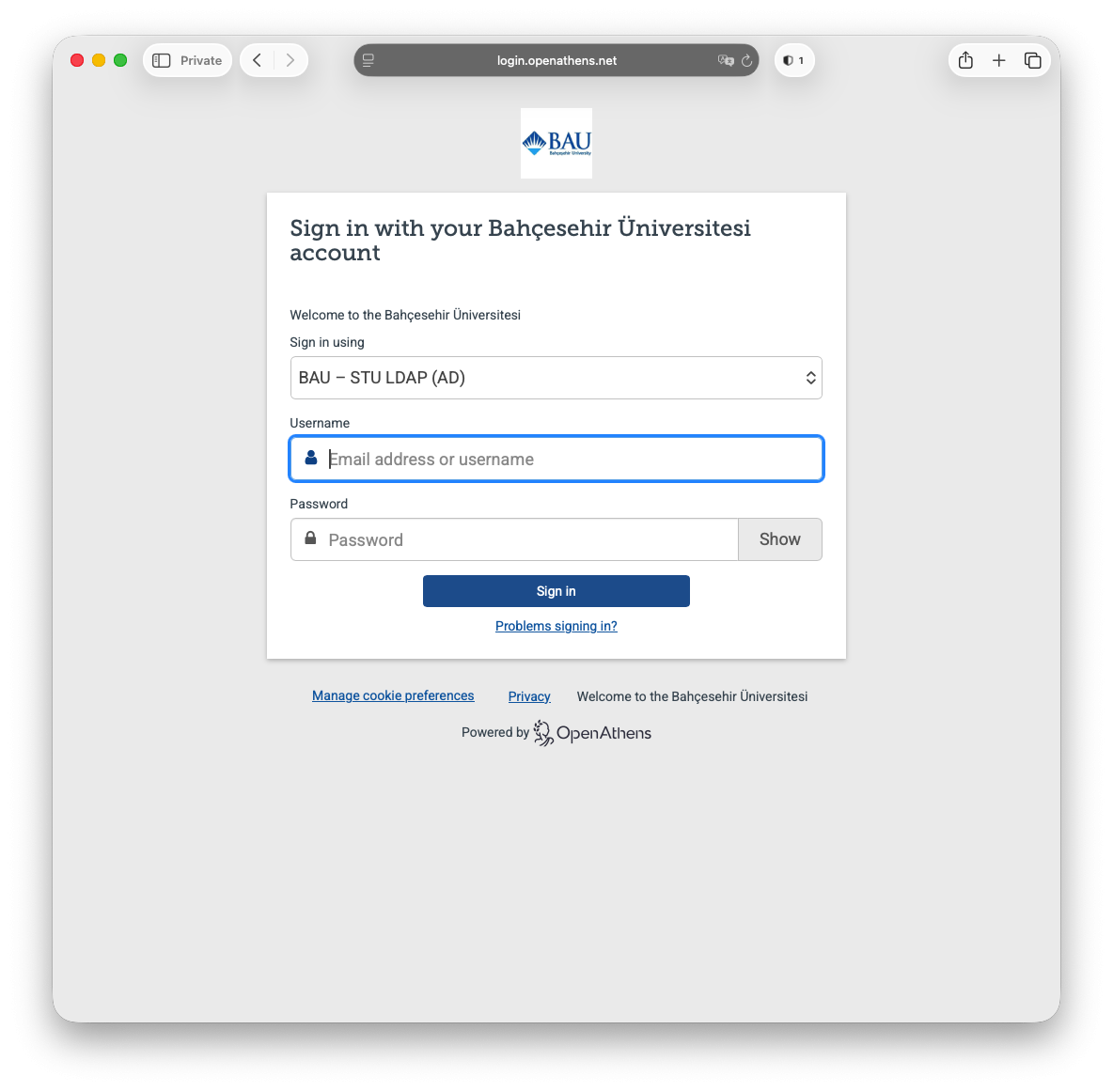](https://libguides.whitecliffe.de/uploads/images/gallery/2026-03/screenshot-2026-03-09-at-11-01-42.png) **Step 6** [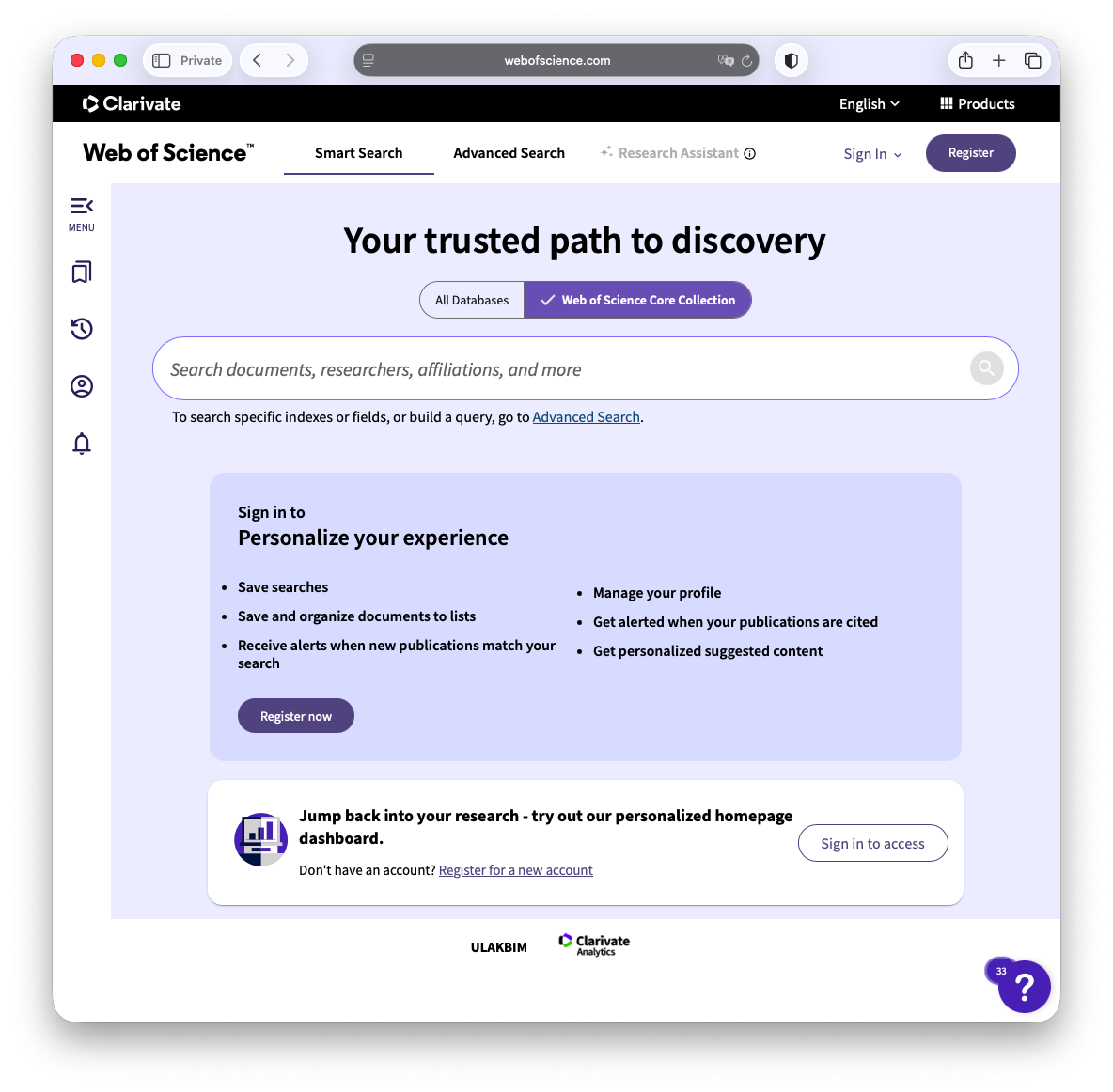](https://libguides.whitecliffe.de/uploads/images/gallery/2026-03/screenshot-2026-03-09-at-11-02-01.png) # Is interlibrary loan available for students? No, the library is not able to loan materials from other libraries for students. Students have the ability to register with other libraries to have access loaning materials. # Can students organize an individual meeting with the librarian to help with their research? Yes, individual research meetings are available upon request. # In what cases can I request a refund for a fine? Refunds can be requested in the case of any inconsistences, including the library being closed due to illness, preventing the returning of books by their due date.