BAU EZProxy Bookmarklet
How it works
If you search BAU databases directly, you are asked to provide login credentials to gain 'proxied' access to resources. In cases where you go directly to a publisher's site without having logged in ("proxied"), you will not be recognised as having access. For these cases, the EZProxy Browser Bookmarklet will allow you to log in without first going back to the BAU web site. A bookmarklet is like a browser extension but more lightweight and can be used on any browser that supports bookmarks, including mobile browsers.
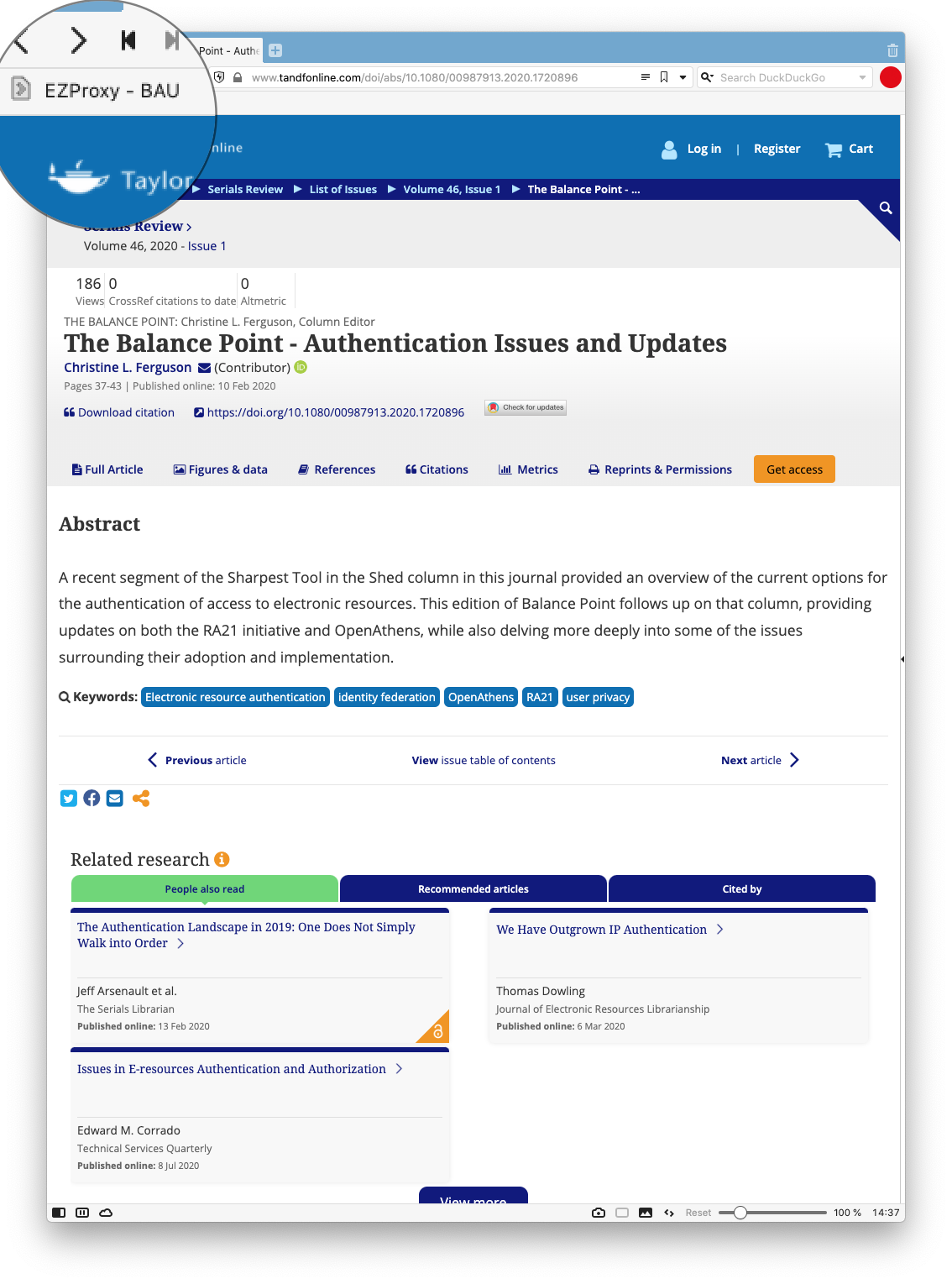
Once added you will see EZProxy - BAU in your menu bar. Click on EZProxy - BAU and the proxy prefix is added to the URL and the work, if BAU has access, will be accessible.
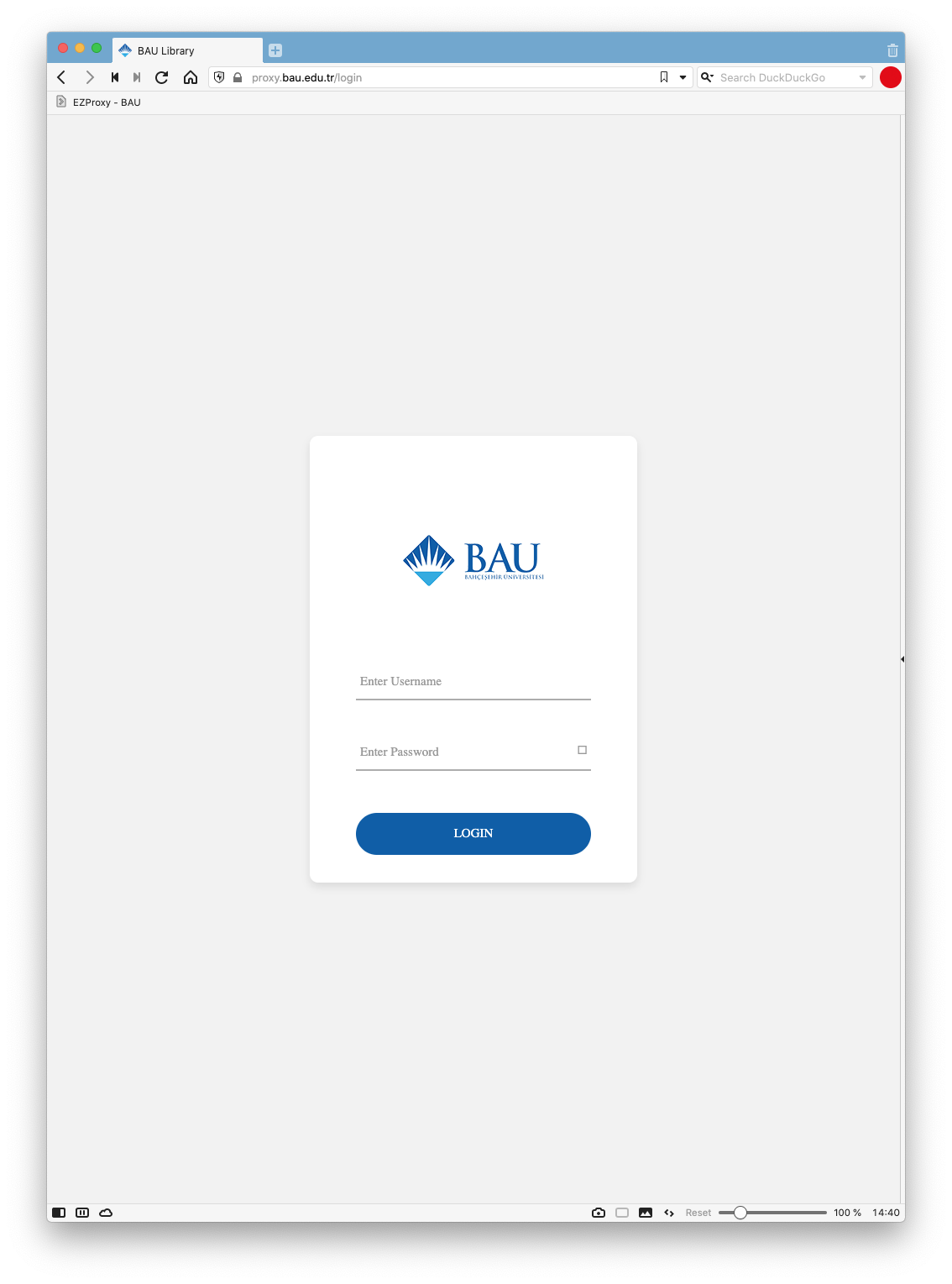
Once pressed, you will be asked for your credentials.
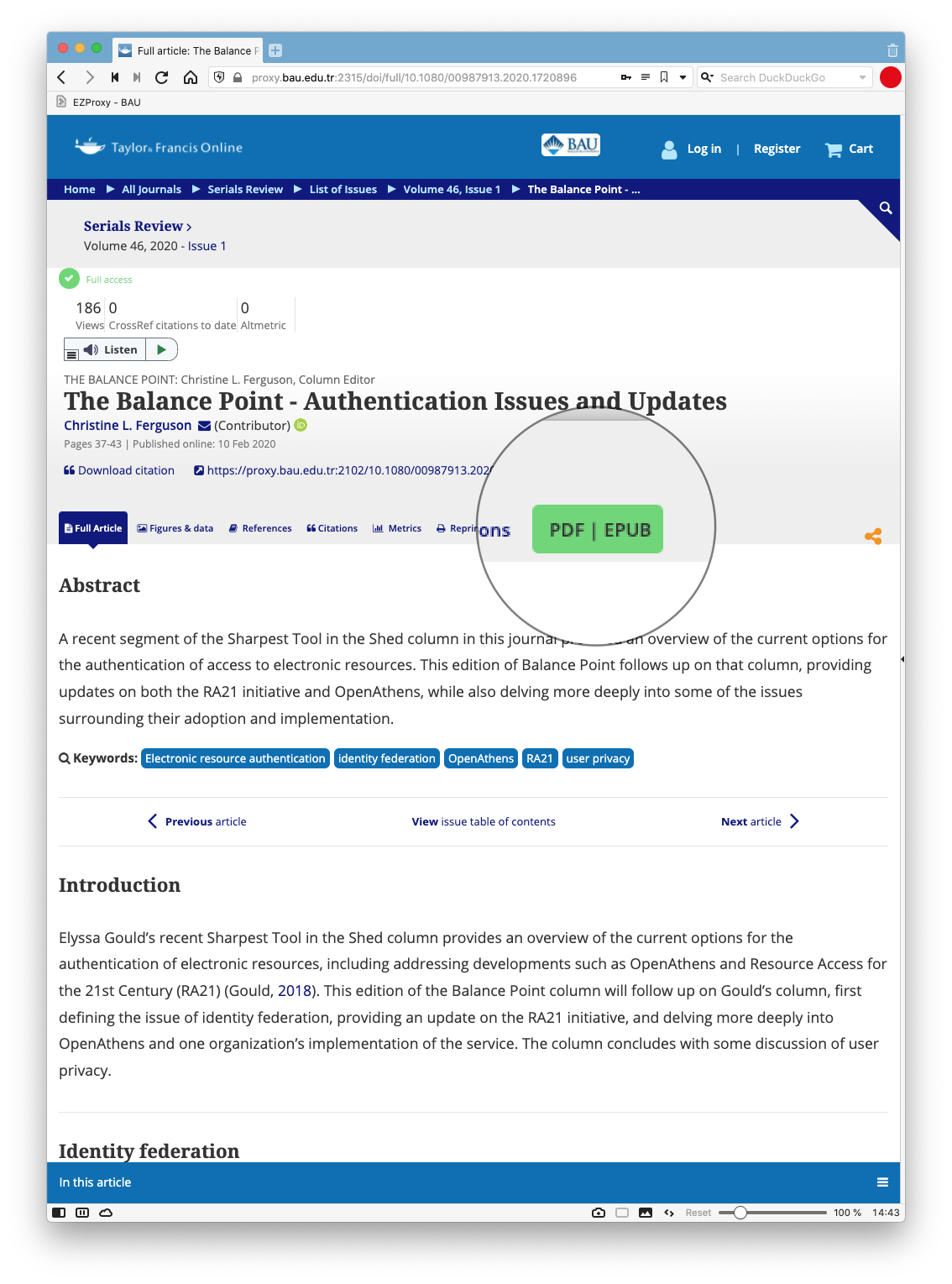
After you have entered your credentials, you will have access to the full text if it is licensed by BAU. In this example, you will notice that the orange Get Access button in the first screenshot has now changed to a green PDF | EPUB button.
Installing the Bookmarklet
Installing the EZProxy bookmarklet varies depending on browser. In general, add the EZProxy link to an always visible Bookmarks or Favourites Toolbar, usually by dragging it into the toolbar. Below are specific instructions for some of the more common browsers.
Firefox 
From the View menu, choose "Toolbars" and "Bookmarks Toolbar" and "Always"
Right-click on 
javascript:void(location.href=%22http://proxy.bau.edu.tr:2048/login?url=%22+location.href) Chrome 
From the View menu, choose "Always Show Bookmarks Bar"

javascript:void(location.href=%22http://proxy.bau.edu.tr:2048/login?url=%22+location.href) Safari 

Edge 

Mobile devices
Apple iOS devices 

Select and copy this JavaScript code
javascript:void(location.href=%22http://proxy.bau.edu.tr:2048/login?url=%22+location.href)